Set up peaflow in five minutes
Sign in, add the person you care for, choose who gets reminders, and add the first medications.
This walks you through setting peaflow up on your own iPhone. Your parent’s phone joins afterwards with a code; see Set up your parent’s own phone.
1. Download and sign in
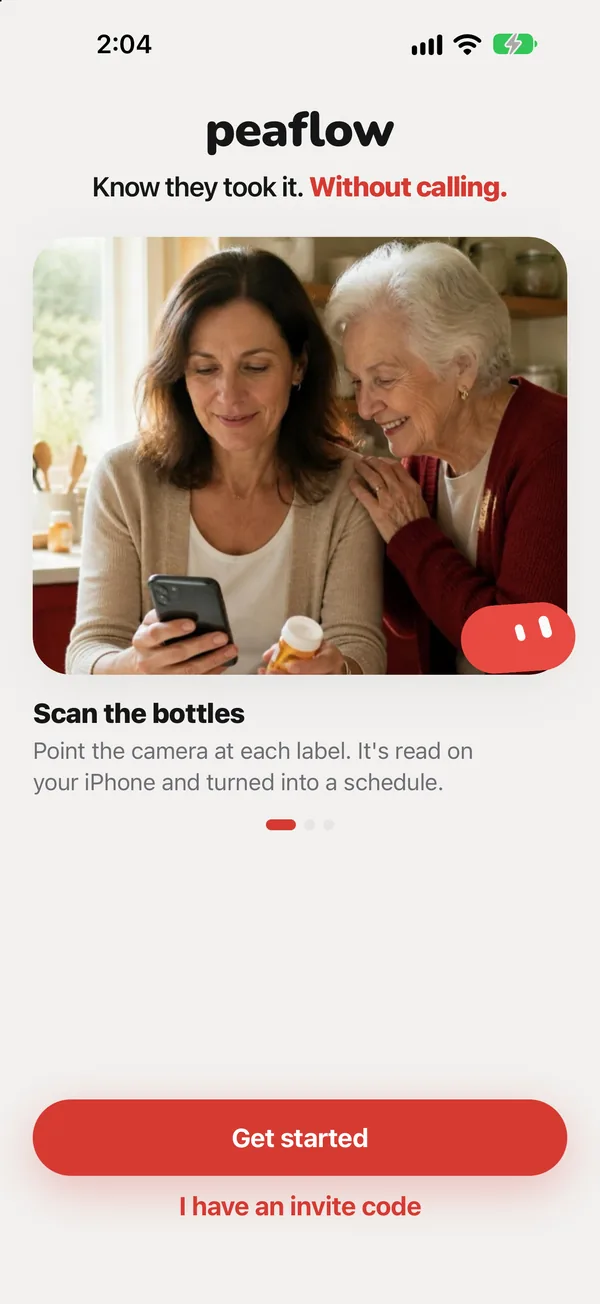
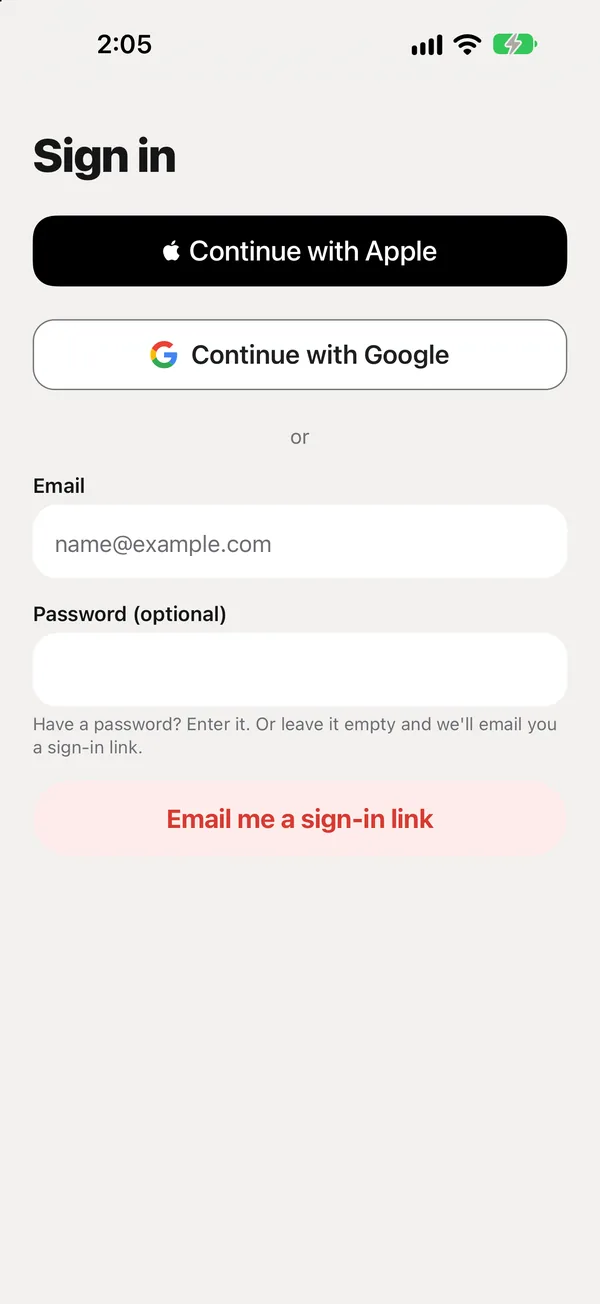
Download peaflow from the App Store and tap Get started. Sign in with Apple, Google, or your email. With email you can type a password, or leave it empty and get a sign-in link instead.
2. Add the person you care for
Enter their first name, and optionally a photo. Pick the relationship (Mom, Dad, Spouse or Other), or Myself if you’re tracking your own medicines.
Then choose their time zone. Reminders follow their clock, even if you live somewhere else.
3. Choose who gets reminders
- Me: reminders come to your phone.
- Linda’s phone: reminders go to your parent’s own iPhone, once it has joined.
- Both: both phones get them.
Tap Turn on reminders and allow notifications when iPhone asks. You can change this later in Settings → Reminders.
4. Add medications
Tap the red + button and scan the first bottle, pick a photo of the label, or type it in. See Add a medication by scanning the label.
5. Invite family (optional)
In the Care tab, tap Invite family. You’ll get a code for your parent’s phone and a code for anyone else who helps. See Invite family to help.
Tip: The free plan covers two medications. When you add a third, peaflow offers Plus with a 3-day free trial.
Did this answer your question?
Thanks for letting us know. If something's missing, email support@peaflow.com.