Add a medication by scanning the label
Point the camera at a pharmacy label and peaflow fills in the medication and proposes reminder times.
The quickest way to add a medication is to scan its pharmacy label.
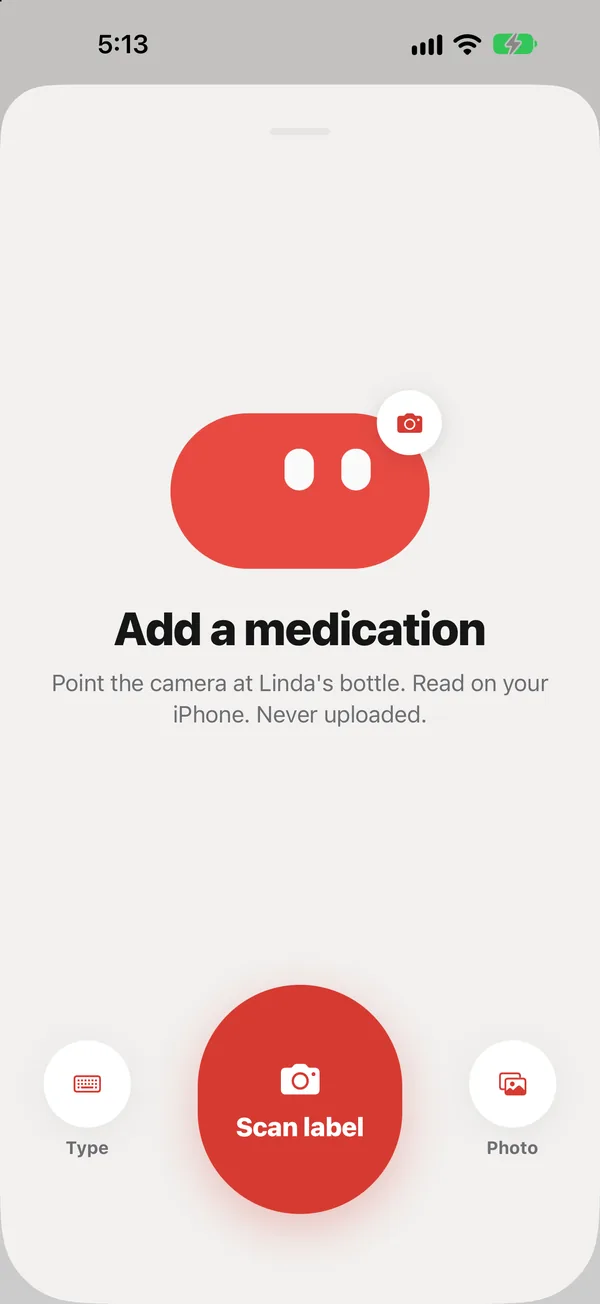
Scan a label
- Tap the red + button, then Scan label.
- Hold the bottle so the label fills the window. The corners turn green when the text is readable.
- If peaflow says Move a little closer or Hold steady, or turn on the light, do that and it tries again.
- Check what peaflow filled in, then tap Save.
The label is read on your iPhone. The photo isn’t uploaded anywhere.
Scanning several bottles
Line the bottles up and scan them one after another. Each one becomes its own medication.
Use a photo instead
If you already have a photo of the label (for example one a sibling sent you), tap Photo and choose it.
What peaflow fills in
- The name, strength and form (tablet, capsule, liquid and so on).
- The directions exactly as printed, and the amount per dose as written on the label.
- Proposed reminder times, read from the directions. “Twice daily” becomes 8 AM and 8 PM; “every morning” becomes 8 AM.
- Whether to take it with food, when the label says so.
Anything peaflow isn’t sure about is marked Check this. Compare it with the bottle before saving. You can change any reminder time; see Reminder times and schedules.
peaflow never works out doses. It shows the amount as the label prints it. If the label is unclear, ask the pharmacist.
Did this answer your question?
Thanks for letting us know. If something's missing, email support@peaflow.com.